
For ease, we have also included all our previous videos related to video calling on desktop and mobile below:
DOWNLOAD our slides to aid context, help with training or just find some useful tips all in one place. https://www.meetimeservices.com/free-teams-training-deck Watch the accompanying full basic training tutorials here or directly on YouTube below: Full Basic Training Part 1 (Team and channel overview, posting basics and best practices, file basics, tabs, Planner and Wiki overview) Full Basic Training Part 2 (more notification settings, other options to add to your posts and the best way to manage your files in Teams) Full Basic Training Part 3 (video calling and Microsoft Planner basics) If you liked this you can check out our most popular videos: - How To Use Meetings & Video Conference Calls - How To Use Wiki - How To Use Microsoft Planner For Meetings ...or see our videos on Teams via the following playlists: - All Teams Videos - Microsoft Teams Tutorials 2020 - Microsoft OneNote & Wiki - Microsoft Planner - Microsoft Power Automate / Flow To get the most out of Teams you will need an office 365 subscription. Click the link below to get started on this: https://microsoft.msafflnk.net/c/1295468/477071/7794 Save £20 off Office 365 when purchased with any Surface/PC using the link above. 
DOWNLOAD our slides to aid context, help with training or just find some useful tips all in one place. https://www.meetimeservices.com/free-teams-training-deck Watch the accompanying full basic training tutorials here or directly on YouTube below: Full Basic Training Part 1 (Team and channel overview, posting basics and best practices, file basics, tabs, Planner and Wiki overview) Full Basic Training Part 2 (more notification settings, other options to add to your posts and the best way to manage your files in Teams) Full Basic Training Part 3 (video calling and Microsoft Planner basics) If you liked this you can check out our most popular videos: - How To Use Meetings & Video Conference Calls - How To Use Wiki - How To Use Microsoft Planner For Meetings ...or see our videos on Teams via the following playlists: - All Teams Videos - Microsoft Teams Tutorials 2020 - Microsoft OneNote & Wiki - Microsoft Planner - Microsoft Power Automate / Flow To get the most out of Teams you will need an office 365 subscription. Click the link below to get started on this: https://microsoft.msafflnk.net/c/1295468/477071/7794 Save £20 off Office 365 when purchased with any Surface/PC using the link above.
DOWNLOAD our slides to aid context, help with training or just find some useful tips all in one place. https://www.meetimeservices.com/free-teams-training-deck Watch the accompanying full basic training tutorials here or directly on YouTube below: Full Basic Training Part 1 (Team and channel overview, posting basics and best practices, file basics, tabs, Planner and Wiki overview) Full Basic Training Part 2 (more notification settings, other options to add to your posts and the best way to manage your files in Teams) Full Basic Training Part 3 (video calling and Microsoft Planner basics) If you liked this you can check out our most popular videos: - How To Use Meetings & Video Conference Calls - How To Use Wiki - How To Use Microsoft Planner For Meetings ...or see our videos on Teams via the following playlists: - All Teams Videos - Microsoft Teams Tutorials 2020 - Microsoft OneNote & Wiki - Microsoft Planner - Microsoft Power Automate / Flow To get the most out of Teams you will need an office 365 subscription. Click the link below to get started on this: https://microsoft.msafflnk.net/c/1295468/477071/7794 Save £20 off Office 365 when purchased with any Surface/PC using the link above.
DOWNLOAD our slides to aid context, help with training or just find some useful tips all in one place. https://www.meetimeservices.com/free-teams-training-deck Watch the accompanying full basic training tutorials here or directly on YouTube below: Full Basic Training Part 1 (Team and channel overview, posting basics and best practices, file basics, tabs, Planner and Wiki overview) Full Basic Training Part 2 (more notification settings, other options to add to your posts and the best way to manage your files in Teams) Full Basic Training Part 3 (video calling and Microsoft Planner basics) If you liked this you can check out our most popular videos: - How To Use Meetings & Video Conference Calls - How To Use Wiki - How To Use Microsoft Planner For Meetings ...or see our videos on Teams via the following playlists: - All Teams Videos - Microsoft Teams Tutorials 2020 - Microsoft OneNote & Wiki - Microsoft Planner - Microsoft Power Automate / Flow To get the most out of Teams you will need an office 365 subscription. Click the link below to get started on this: https://microsoft.msafflnk.net/c/1295468/477071/7794 Save £20 off Office 365 when purchased with any Surface/PC using the link above.  In this video, we look at using the net promoter score question in Microsoft Forms to help us measure and drive Teams user adoption. We go through: - How to set-up the form with pictures and background - How to change the anonymous settings and why you might not want to - How to track promoter score over time using Excel - The three ways to share your Form in Teams to get it filled in (post, tab & SharePoint news embed) - How the Form shows up on mobile
DOWNLOAD our slides to aid context, help with training or just find some useful tips all in one place. https://www.meetimeservices.com/free-teams-training-deck Watch the accompanying full basic training tutorials here or directly on YouTube below: Full Basic Training Part 1 (Team and channel overview, posting basics and best practices, file basics, tabs, Planner and Wiki overview) Full Basic Training Part 2 (more notification settings, other options to add to your posts and the best way to manage your files in Teams) Full Basic Training Part 3 (video calling and Microsoft Planner basics) If you liked this you can check out our most popular videos: - How To Use Meetings & Video Conference Calls - How To Use Wiki - How To Use Microsoft Planner For Meetings ...or see our videos on Teams via the following playlists: - All Teams Videos - Microsoft Teams Tutorials 2020 - Microsoft OneNote & Wiki - Microsoft Planner - Microsoft Power Automate / Flow To get the most out of Teams you will need an office 365 subscription. Click the link below to get started on this: https://microsoft.msafflnk.net/c/1295468/477071/7794 Save £20 off Office 365 when purchased with any Surface/PC using the link above.  We have seen a massive surge in views of our videos on Teams calling and lots of questions coming in via YouTube on some of the more hidden options. In this week's video we take a look at:
For ease, we have also included all our previous videos related to video calling on desktop and mobile below:
DOWNLOAD our slides to aid context, help with training or just find some useful tips all in one place. https://www.meetimeservices.com/free-teams-training-deck Watch the accompanying full basic training tutorials here or directly on YouTube below: Full Basic Training Part 1 (Team and channel overview, posting basics and best practices, file basics, tabs, Planner and Wiki overview) Full Basic Training Part 2 (more notification settings, other options to add to your posts and the best way to manage your files in Teams) Full Basic Training Part 3 (video calling and Microsoft Planner basics) If you liked this you can check out our most popular videos: - How To Use Meetings & Video Conference Calls - How To Use Wiki - How To Use Microsoft Planner For Meetings ...or see our videos on Teams via the following playlists: - All Teams Videos - Microsoft Teams Tutorials 2020 - Microsoft OneNote & Wiki - Microsoft Planner - Microsoft Power Automate / Flow To get the most out of Teams you will need an office 365 subscription. Click the link below to get started on this: https://microsoft.msafflnk.net/c/1295468/477071/7794 Save £20 off Office 365 when purchased with any Surface/PC using the link above.  In this video, we look at how to create a quick poll in a Teams conversation or chat using Microsoft Forms. DOWNLOAD our slides to aid context, help with training or just find some useful tips all in one place. https://www.meetimeservices.com/free-teams-training-deck Watch the accompanying full basic training tutorials here or directly on YouTube below: Full Basic Training Part 1 (Team and channel overview, posting basics and best practices, file basics, tabs, Planner and Wiki overview) Full Basic Training Part 2 (more notification settings, other options to add to your posts and the best way to manage your files in Teams) Full Basic Training Part 3 (video calling and Microsoft Planner basics) If you liked this you can check out our most popular videos: - How To Use Meetings & Video Conference Calls - How To Use Wiki - How To Use Microsoft Planner For Meetings ...or see our videos on Teams via the following playlists: - All Teams Videos - Microsoft Teams Tutorials 2020 - Microsoft OneNote & Wiki - Microsoft Planner - Microsoft Power Automate / Flow To get the most out of Teams you will need an office 365 subscription. Click the link below to get started on this: https://microsoft.msafflnk.net/c/1295468/477071/7794 Save £20 off Office 365 when purchased with any Surface/PC using the link above.  In this video we look at tips to get you quickly working from home using Microsoft Teams even if you do not have a team set up. We look at video, conference and 121 calls; co-authoring documents without a team; and how to best protect your work-life balance with do not disturb settings. DOWNLOAD our slides to aid context, help with training or just find some useful tips all in one place. https://www.meetimeservices.com/free-teams-training-deck Watch the accompanying full basic training tutorials here or directly on YouTube below: Part 1 Part 2 Part 3 Related videos to this one: - Meetings and Video Conference Calls - Collaboration and Document Sharing If you liked this you can check out our most popular videos: - How To Use Wiki - How To Use Microsoft Planner For Meetings - Microsoft Teams Best Practice Basics And Beyond ...or see our videos on Teams via the following playlists: - All Teams Videos - Microsoft Teams Tutorials 2020 - Microsoft OneNote & Wiki - Microsoft Planner - Microsoft Power Automate / Flow To get the most out of Teams you will need an office 365 subscription. Click the link below to get started on this: https://microsoft.msafflnk.net/c/1295468/477071/7794 Save £20 off Office 365 when purchased with any Surface/PC using the link above. In this short post we cover how to avoid posting when you wanted a new line... and how to recover if you do it by accident.  One of the main things that people forget after training is hitting enter sends your message and how to recover if you do do that by accident. Watch the video below or scroll down for the text and picture version.
 Hit the format button for more space to type and turn hitting enter into a new line rather than sending your message If you do need to write a longer message with some spaces in between the lines then it's this little format box that you want to hit before you start typing. This pops up a bigger text box and you can put a subject line or format the message a little more like an email. If the text box is big like this then when you start typing and hit enter you'll get a new line to make your longer message easier to read. When you are ready to send it then click this little paper plane icon to get it out into the world. 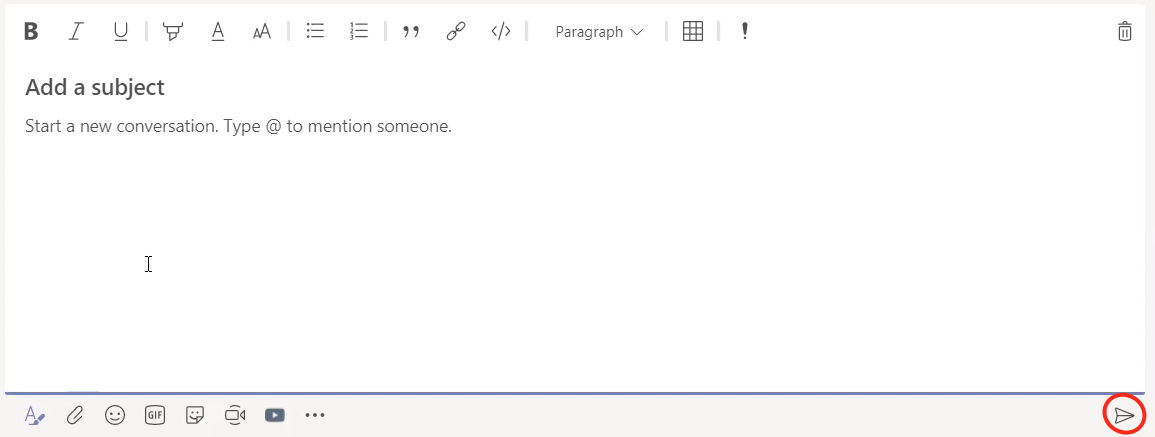 When the text box is big hitting enter creates a new line. The paper plane icon sends your message. Check out all the rest of our Teams series here. The most recent Teams posts are below: How To Manage Channel Notifications In Teams How To Manage Email Notification In Teams How To Turn Off Notifications in Teams How To Find Things In Teams How To Move Files To Teams To get the most out of Teams you will need an Office 365 subscription. Click the link to save £20 off Office 365 when purchased with any Surface/PC. 
In this post we look at three different ways to move your files into Teams: directly, via SharePoint and via OneDrive sync (which also has the benefit of being able to get your Teams files offline)
So you've started using teams and now you want to get all of your files that were stored somewhere else, probably in a Shared Drive or another SharePoint site, into Teams files. I'm going to show you three ways of moving your files over and, skipping ahead, the third way is the best way so keep reading.
Okay so like I said there's three ways of moving your files over.
The first way we're gonna look at is just directly into Teams and I'll let you know some of the limitations about doing it that way. The second way is via SharePoint which might you need a different browser for, potentially, so anything but Internet Explorer. And the third way which I said it's the best way is via OneDrive sync so if you don't know anything about OneDrive we'll touch on that a bit later. Moving Files Into Teams Directly
The first way is just directly in Teams itself.
Imagine I've got two folders and two files in each folder and I just want to move everything over that I used to work on and move it into teams and retain the folder hierarchy. Whether you use the upload button or just drag both folders on top of the Teams files tab, this will upload the files but not the folder structure. If you didn't have many files to move then this is the quickest way because you don't need to go anywhere else but Teams but if you're moving everything over that you used to work on in bulk into Teams, probably step 2 or step 3 are going to be better for you 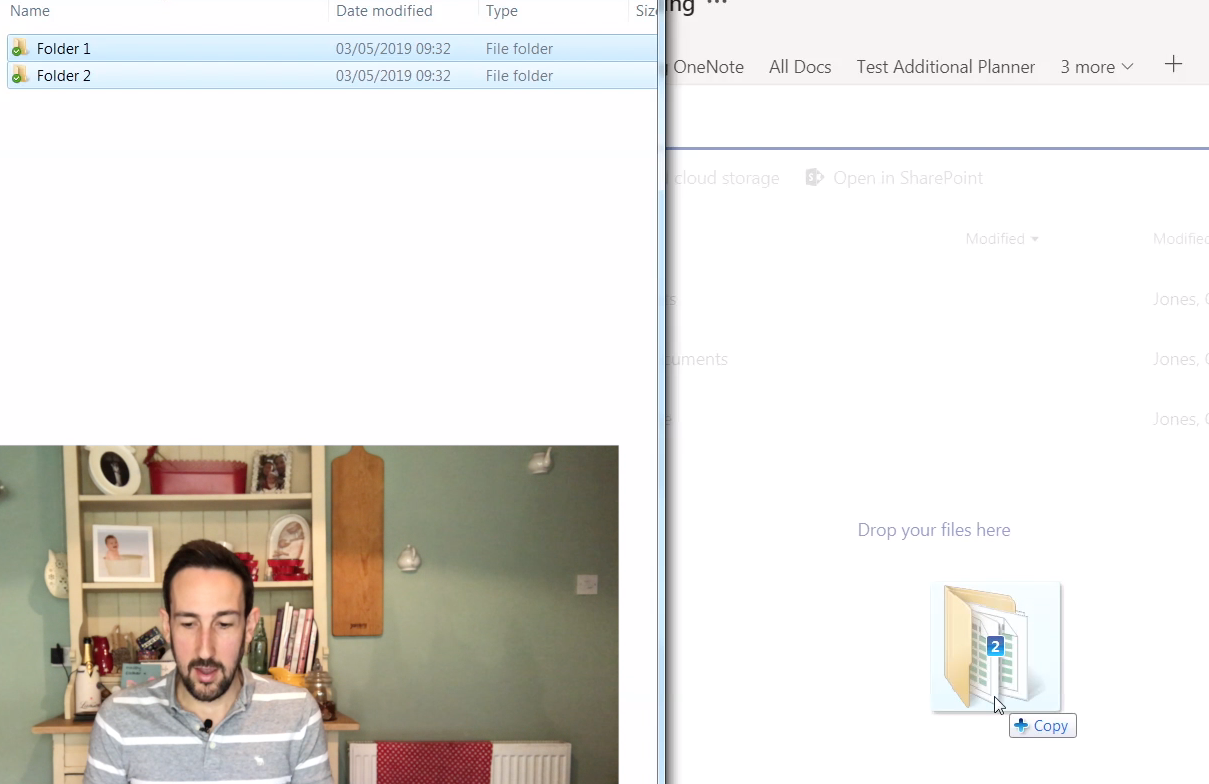
Dragging folders directly into Teams uploads all files but loses folder structure
Moving Files Into Teams Via SharePoint
The second way to get your files and folders into teams is by using SharePoint.
In Teams in the files tab in any channel, you'll see an option at the top which says "open in SharePoint." This opens the web version of your files in Teams. If you use Internet Explorer this method won't work because it will not let you drag the files on top of it so you'll need another browser such as Google Chrome or Edge. If you want to move all the files over once you've got to this point it's really as easy as selecting all the folders you want and then just dragging them onto the window. You'll see it says copy there so you know it's gonna work correctly. Unlike dragging folders onto Teams, this method will keep our folder structure. If we go back to Teams that's gonna show us exactly the same thing, you might have to refresh the view and then you'll see it all the folder structure appears in Teams as well. If you've got a lot of files and folder structure to move over then this is a very quick way to move all of your files and folders over into Teams. 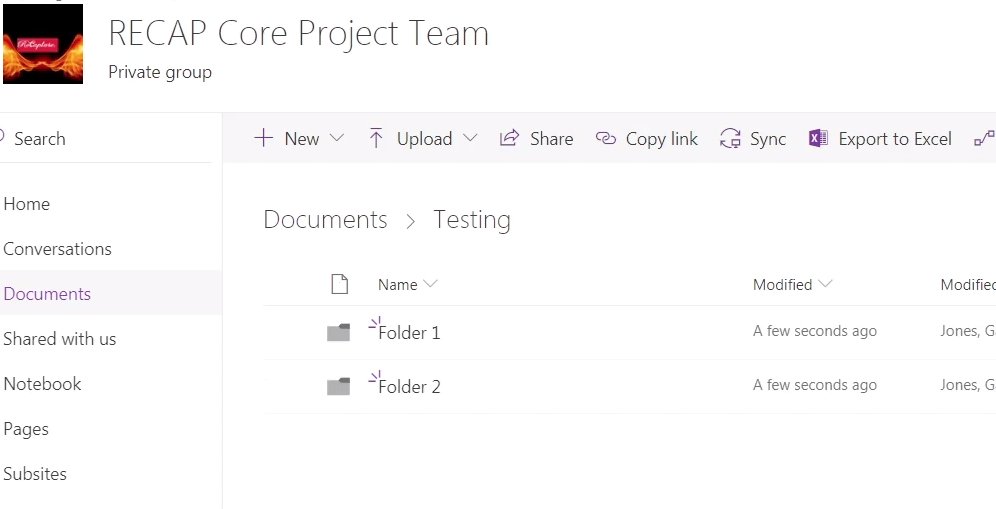
Dragging folders into the SharePoint view of Teams files retains folder structure
Moving Files Into Teams Via OneDrive Sync
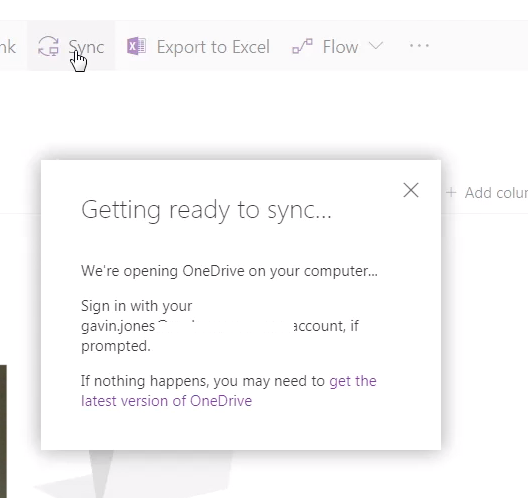
So the way to do that again is to open your file view in SharePoint again. Go into the files tab of whichever channel you want to sync, open it in SharePoint and then you'll see there's just a little sync button at the top of the screen. If we click sync it's going to pop us up a dialog box in OneDrive which asking what do you want to sync. You can sync anything in Teams, or in SharePoint (as SharePoint is just the bit that handles files in Teams) so you want to make sure that you're in the right folder so you probably don't want to sync everything in the entire Team especially in a large Team because that's going to be a lot of files it's going to take up space on your hard drive (unless you use files on demand).
Once this is done, if you're used to using OneDrive where you've got the OneDrive icon on the left hand side of your explorer window where you can see all of your personal files, you'll now get another little icon which says your company name which is where all of your synced files from SharePoint sites will appear. Now it's synced it acts like any other folder in Windows, so we can drag the folders into this explorer window and we'll get a little blue icon to show it's syncing now back up to the cloud. Once those ticks are green then they'll now appear back in Teams. That's probably the best way of syncing your files and having an offline copy as well. So let us know you thought of this post and to like and subscribe in YouTube, and leave us a comment if you want to see more of this type of content or if there is anything else you want us to cover.
Check out all the rest of our Teams series here.
The most recent Teams posts are below: How To Manage Channel Notifications In Teams How To Manage Email Notification In Teams How To Turn Off Notifications in Teams How To Find Things In Teams To get the most out of Teams you will need an Office 365 subscription. Click the link to save £20 off Office 365 when purchased with any Surface/PC. 
|
Archives
August 2020
Categories
All
|




 RSS Feed
MeeTime Copyright © 2016
*Goldman Sachs, Rolls Royce, Nielsen, Molson Coors, DXC Technologies, Hewlett Packard Enterprise and their respective logos are trademarks and are in NO WAY affiliated, endorsed by or associated with MeeTime.
MeeTime Ltd is a participant in the Amazon Services LLC Associates Program, an affiliate advertising program designed to provide a means for sites to earn advertising fees by advertising and linking to Amazon.com.
*Amazon and the Amazon logo are trademarks of Amazon.com, Inc., or its affiliates.
Additionally, MeeTime Ltd participates in various other affiliate programs, and we sometimes get a commission through purchases made through our links.
*Amazon and the Amazon logo are trademarks of Amazon.com, Inc., or its affiliates.
Additionally, MeeTime Ltd participates in various other affiliate programs, and we sometimes get a commission through purchases made through our links.